
Printing
A bit about our printers:
Every library public PC including the laptops have 4 primary printers installed. Our printers physical locations on the floor are all identified by a sign on the column nearest to that printer (Printer 1, 2, 3, or Color)
We follow the campus printer naming conventions. On the PC’s the printers are named as follows:
- Printer 1 – Library-LJ1-M806
- Printer 2 – Library-LJ2-M806
- Printer 3 – Library-LJ3-M806
- Color Printer – LIBRARY-CLJ-M750
You can choose between these printers at the top of the print dialog box in most programs.
Adding more money/pages to you PaperCut Print Quota
Fix Common Printing Problems
- The Magic Repair Printing Button
- Print from my own laptop or tablet
- My PDF document only prints a few pages
- Only the top or side of a web page prints
- My default printer is down or is busy
- The web browser crashes when I print
- How can I check on my print job
- How can I print more than one page per sheet in PowerPoint, Word, or a PDF
- There is no print button on this web browser window
The Repair Printing Shortcut Fixes Multiple Printing Problems
The Repair Printing shortcut can be found on your desktop, the Windows task bar, and in the list of programs available when you click the start button.
Repair Printing can fix several kinds of printing problems. Such as:
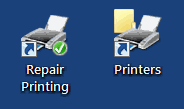
- If the PC tells you no printers are installed – click it & login when asked to, the printers will magically appear.
- If your print jobs dont appear in PaperCut – click it & login when asked to, in a couple minutes they are there.
- If you get an error that causes printing on the PC to crash- click it & login when asked to, the printing restarts.
PROBLEM: My PDF document does not print OR prints only a few pages
FIX / TIP: ‘Print As Image’ OPTION
In Adobe Acrobat click ‘Print’ and then in the print dialog box click the ‘Advanced’ button. In ‘Advanced’ select the ‘Print as image’ check box. Click ‘OK’ and print the document like normal. This makes the document slightly larger in file size but often helps you get past corrupt data that may be in your PDF document preventing it from printing.
PROBLEM: Only the top menu or side menu prints
FIX / TIP: CLICK ON THE PAGE BEFORE YOU PRINT
Always click on a blank area in the section of the page that contains what you want to print before you print.
Some web pages are broken down into sections called frames and the browser will not know what frame you want to print unless you click on it first.
PROBLEM: My default printer is down or busy with a line around it.
FIX / TIP: SWITCH PRINTERS
Print the document then at the top of the print dialog box choose a different printer from the drop down list of printers.
PROBLEM: The web browser crashes when I load/print a document, OR the page does not look right on the screen, OR the browser tells me I need a plug-in
FIX / TIP: SWITCH TO A DIFFERENT BROWSER
All stations have Mozilla Firefox, Microsoft Edge, and Google Chrome. If one does not like the page or document, a different one might do better. You can copy the web address from the top of one web browser and paste it into the address box of the other and you might be able to get directly to where you left off.
PROBLEM: Where are my print jobs in the queue?
FIX / TIP: TRACK YOUR PRINT JOBS
On the desk top or tool bar of every PC you can find a shortcut called, ‘Printers Folder’. Double click a printer in that folder to find the printer queue for each. Under the Owner section of the queue you will see your login name on all of your jobs.
PROBLEM: Printing more than one slide per page in PowerPoint.
FIX / TIP: CHOOSE HANDOUTS IN THE PRINT DIALOG
Do not click the printer icon in PowerPoint. Instead go to the File menu (ribbon) and choose ‘Print’. At the bottom of the print dialog box in the ‘Print What:’ box choose ‘Handouts’ then on the right choose between 2 to 6 per page.
TIP: Choosing 3 per page gives you note taking space on the right.
ALSO:
Print Multiple pages per sheet in Word
Click on the ‘File’ menu (ribbon) and then click ‘Print’. In the print dialog on the right choose ‘Pages Per Sheet’
Print Multiple pages per sheet in PDF
Click the ‘Print’ button, use the ‘Scaling’ drop down box and choose ‘multiple pages per sheet’, then set how many and see if it works in the preview window.
PROBLEM: The web browser window has no print button
FIX / TIP: USE THE PRINTING KEYBOARD SHORTCUT
Hold the CTRL key and hit the letter P to bring up the print dialog.